Mini Mic ProSetup
Pick your Mini Mic Pro so we can show the right steps.
Not sure? If your box came with a charging case that has 3 small lights, choose the Charging Case.
Step 1: Plug the receiver into your phone's charging port.
Then tap Connect.

Your phone is using its own microphone right now. Plug the Mini Mic Pro receiver into your phone's charging port.

Step 2: Hold the power button on the back of each mic until the light turns solid green.
Still flashing red and green? Keep the mic close to your phone and wait a few seconds. Light already solid green? Hold the button to turn the mic off, then hold it again to turn it on. If the light is off, charge the mic first.
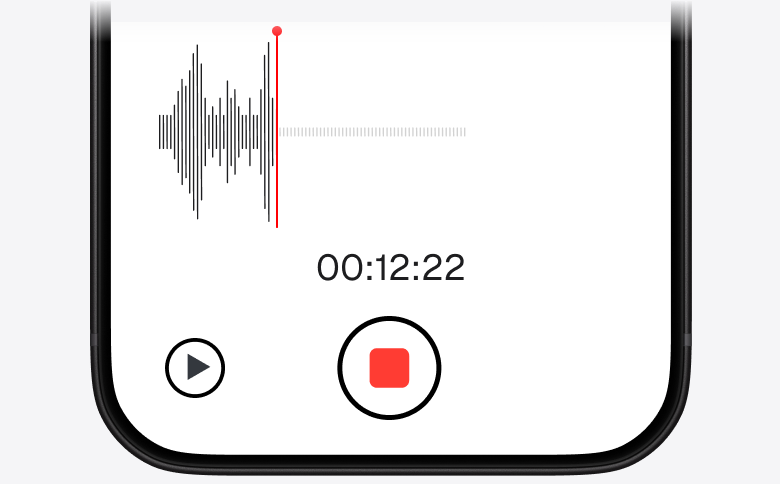
Talk normally. The waves follow your voice.

What is the light on your mic doing?

One button on the back of the mic does it all.
The light on your mic tells you what it's doing.
Connected and ready. Open your Camera or any app that records. Your mic is used automatically.
Free 12-month warranty. Takes 10 seconds.
Clip the mic on and talk for about 10 seconds. Our team and the factory will listen and tell you how to fix it.








Your recording is used only to troubleshoot your mic.
Thanks. Our team will listen and reply by email.